SSO & Auth
The SSO & Auth tab in the Players section is where you configure which authentication providers players can use to sign into your project. Only enabled providers are accepted — any sign-in attempt through a disabled provider will be rejected.
To open it: navigate to Players → SSO & Auth in the project sidebar.
Overview
The page lists all available authentication providers. Each provider shows its current status and, when expanded, its configuration fields.
The header displays how many providers are currently enabled out of the total available — for example, 2 of 6 providers enabled.
Providers fall into two categories:
Standard providers require you to supply credentials from the provider's developer console. PlayServ uses these to validate authentication on the backend.
Providers
- Apple
- Epic
Sign in with Google accounts via OAuth 2.0.
Get credentials from Google Cloud
Go to console.cloud.google.com and open or create a project. Navigate to APIs & Services → Credentials and create an OAuth 2.0 Client ID with application type Web application.
Enter credentials in PlayServ
Copy the Client ID and Client Secret into the corresponding fields in PlayServ.
| Field | Description |
|---|---|
| Client ID | OAuth 2.0 client identifier from Google Cloud console |
| Client Secret | OAuth 2.0 client secret from Google Cloud console |
| Redirect URI | Generated by PlayServ — read only |
Add the Redirect URI to Google
Copy the Redirect URI shown in PlayServ and add it to the list of Authorised redirect URIs in your Google Cloud OAuth app, then save the changes in Google Cloud.
Test and enable
Click Test connection to verify the credentials are accepted, then toggle the provider on.
Sign in with Facebook and Meta accounts.
Get credentials from Meta for Developers
Go to developers.facebook.com and open or create an app. Under Settings → Basic, copy the App ID and App Secret.
Enter credentials in PlayServ
Paste the App ID and App Secret into the corresponding fields.
| Field | Description |
|---|---|
| App ID | 15-digit numeric ID |
| App Secret | 32-char hex |
| Redirect URI | Generated by PlayServ — read only |
Test and enable
Click Test connection to verify, then toggle the provider on.
Sign in with Apple. Required by App Store guideline 4.8 for iOS apps that offer any third-party social login.
If your iOS app includes any third-party social login (Google, Facebook, etc.), Apple sign-in is mandatory per App Store Review Guidelines 4.8. Omitting it will result in rejection.
Create a Services ID in Apple Developer
Go to developer.apple.com and open your app's identifier. Enable Sign in with Apple, then create a Services ID for the web-based OAuth flow.
Generate a private key
Under Keys, create a new key with Sign in with Apple enabled. Download the .p8 key file and note the Key ID and your Team ID.
Enter credentials in PlayServ
Get credentials from developer.apple.com → Certificates, Identifiers & Profiles, then fill in all required fields.
| Field | Description |
|---|---|
| Services ID | A "Services ID" registered under your App ID. Used as the OAuth client_id. |
| Team ID | Visible at the top-right of the Apple Developer portal. |
| Key ID | Shown when you create a Sign in with Apple "Key" in Apple Developer. |
| Private key (.p8 PEM) | Paste the contents of the .p8 file Apple gave you. P-256 ECDSA. |
| Redirect URI | Generated by PlayServ — read only |
Test and enable
Click Test connection to verify, then toggle the provider on.
Sign in with an Epic Games account.
Enable this provider only if you are shipping on Epic Games Store or targeting Epic account holders. It is listed as disabled by default.
Get credentials from Epic Developer Portal
Go to dev.epicgames.com and open your product. Under Product Settings → Clients, copy the Client ID and Client Secret.
Enter credentials in PlayServ
Paste the Client ID, Client Secret, and Deployment ID into the corresponding fields.
| Field | Description |
|---|---|
| Client ID | EOS client credential. Issued under your Product → Clients in the Epic developer portal. |
| Client Secret | EOS client credential. Issued under your Product → Clients in the Epic developer portal. |
| Deployment ID | EOS deployment to authenticate against. Product ID and Sandbox ID are resolved from it server-side — no need to enter them separately. |
| Redirect URI | Generated by PlayServ — read only |
Enable the provider
Toggle the provider on. Epic does not require a connection test step.
Testing a connection
Each standard provider has a Test connection button that appears when the provider row is expanded. Use it after entering credentials to verify that PlayServ can reach the provider before enabling it.
Test the connection before enabling the provider. A misconfigured provider that is enabled will silently reject all sign-in attempts through that method.
End-to-end testing with Test Tools
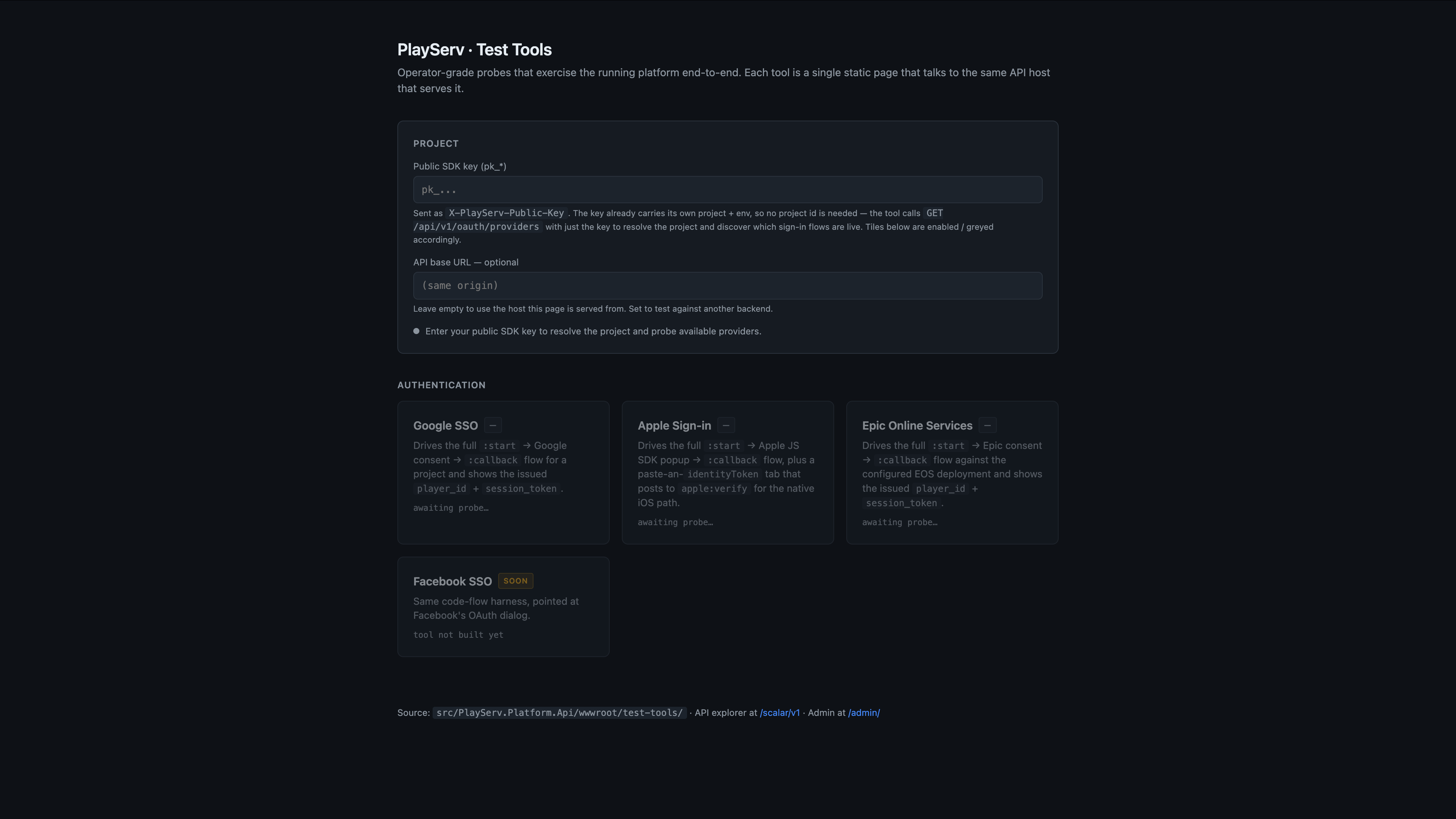
PlayServ includes a built-in Test Tools page that lets you run a full authentication flow against your live backend without writing any code.
Open it via the Test sign-in button in the top-right of the Player authentication header on the SSO & Auth page, or navigate directly to dashboard.playserv.com/test-tools.
Get your Public SDK key
You need a Public SDK key (pk_...) to use Test Tools. This key is shown only once — at the moment it is created in the PlayServ dashboard.
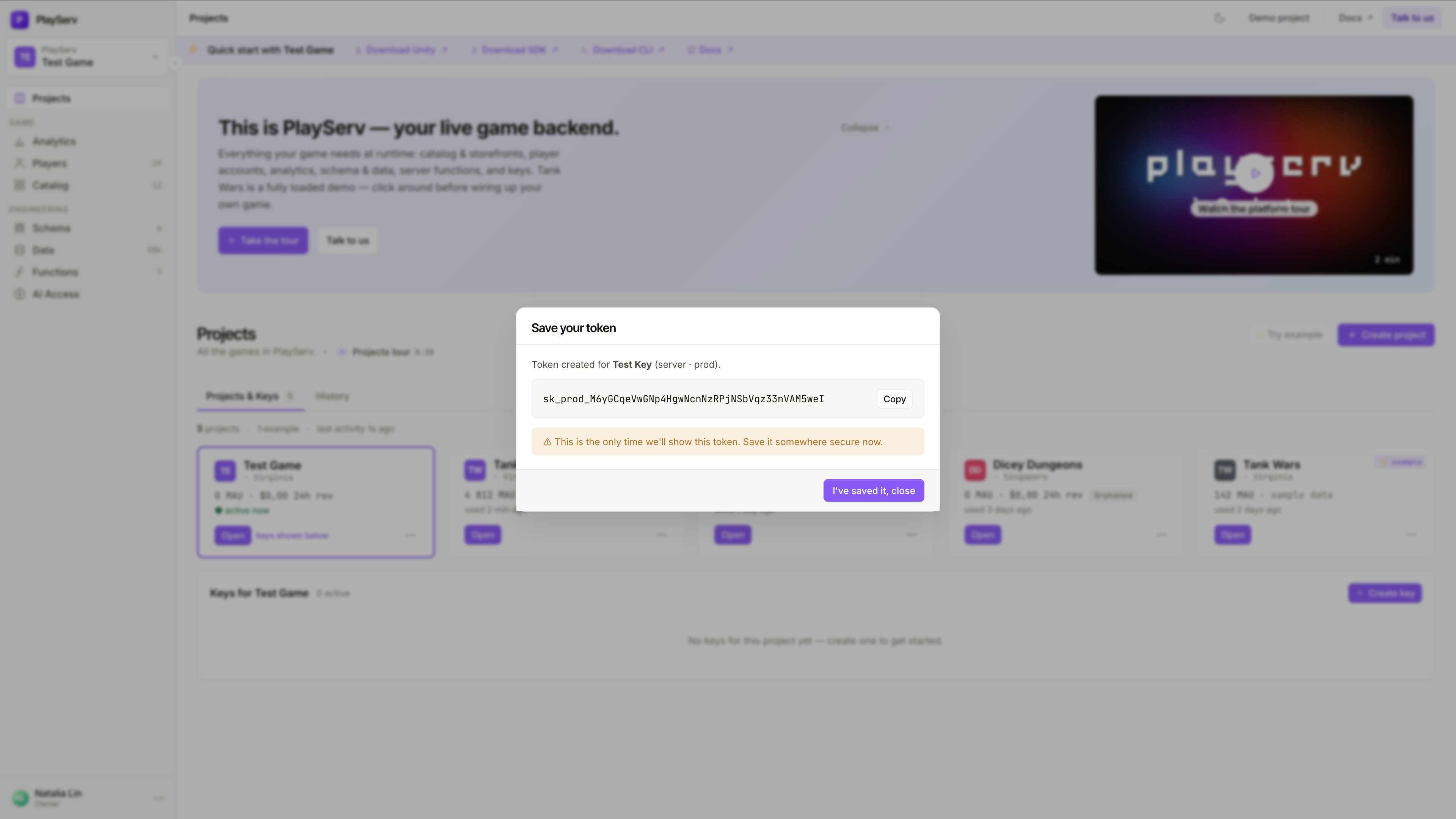
If you did not save it when it was created, generate a new key in SDK Key Management. Once closed, the token cannot be retrieved.
Enter the key in Test Tools
Paste your Public SDK key into the Public SDK key field at the top of the Test Tools page.
The key already carries the project and environment — no project ID is needed separately. The tool calls GET /api/v1/auth/providers and activates the cards for all providers that are currently enabled and configured in your project.
Run the authentication flow
Click the card for the provider you want to test. Each card drives the full sign-in flow end-to-end.
Google SSO opens the Google consent screen → callback → returns player_id and session_token.
Apple Sign-in opens the Apple JS SDK popup → /apple/verify → returns player_id and session_token.
Epic Online Services drives the Epic /start → callback → returns player_id and session_token.
Verify the result
After a successful sign-in the tool displays the issued player_id and session_token. These are real credentials — the player account is created in your project if it did not exist before.
Facebook SSO is listed in Test Tools as Coming Soon — the test harness is not yet available for that provider.
Enabling and disabling providers
Each provider has a toggle on the right side of its row. Providers are enabled or disabled independently.
- Toggling a provider off immediately stops accepting sign-ins through it. Players who previously authenticated via that provider will not be able to log in again until it is re-enabled.
- Toggling a provider on makes it available as a sign-in method as soon as the credentials are valid and the connection is verified.
Coming soon
The following providers are listed in the SSO & Auth tab but are not yet available:
PlayServ Webhook (PlayServ-native) — your auth server calls PlayServ. Use this when you already have your own login UI and want to delegate token issuance to PlayServ.
PlayServ Auth Token (PlayServ-native) — the SDK passes a signed token. Use this when you mint JWTs server-side and pass them directly into the SDK.
Next steps
- User Login & Authentication — how the SDK consumes the
UserTokenafter a player signs in through a provider - SDK Key Management — project-level credentials used by the SDK itself, separate from player auth providers