Not translated yet — showing English.
Servers
Servers is where you run the game servers that host your rooms. It shows each fleet's state and replicas and its logs. It is also where you set how the fleet's rooms behave, and where and on how many machines it runs. The page is scoped to the environment selected in the top bar, and the count next to Servers in the sidebar is the number of game servers in the project.
The model
A game server is a type of server, not a machine: game server → instance → room.
| Term | What it is |
|---|---|
| Fleet | One game server: a function declared with the game_server kind. |
| Replica | One running copy of a fleet. In a pooled fleet, each live pool machine is a replica. |
| Instance | One game-server process connected to PlayServ. An instance can hold several rooms. |
| Deployment point | A PlayServ point of presence where a fleet can run. |
| Machine pool | Warm machines that PlayServ keeps running your server image at one deployment point. |
Three ways to run a fleet, fixed when the game server is declared.
| Path | Run mode | Who does what |
|---|---|---|
| PlayServ SDK · Cloud Run | Managed | PlayServ handles the protocol integration, runtime, hosting and lifecycle. |
| Third-party · Docker | Pooled | PlayServ runs your container image on a machine pool. |
| Third-party · VM | External | You run the server, on your own machines or through Edgegap. PlayServ provisions infrastructure but doesn't interpret your game protocol. |
Replica and fleet states. A fleet's state is rolled up from its replicas; the first state in the fleet table that applies wins.
| Replica | Meaning |
|---|---|
| Healthy | Serving players normally. |
| Draining | Alive, but leaving service on purpose: a graceful shutdown, not a fault. |
| Unhealthy | Running, but its health checks are failing. |
| Starting | Booting, not yet accepting sessions. |
| Stopped | Not running. |
| Fleet | Meaning |
|---|---|
| State unavailable | PlayServ couldn't read the fleet's state, or it has no replicas. A monitoring gap, not proof the fleet is down. |
| Deploy failed | The last deploy failed; the previous version keeps serving. |
| Deploying | A new version is rolling out. |
| Down | No healthy replicas. |
| Degraded | At least one replica is unhealthy. |
| Draining | Replicas are leaving service gracefully. |
| Healthy | Every replica is serving. |
Fleets
The list has one card per fleet, the ones needing action first. When any fleet is Deploy failed, Down, Degraded or State unavailable, a banner at the top names them.
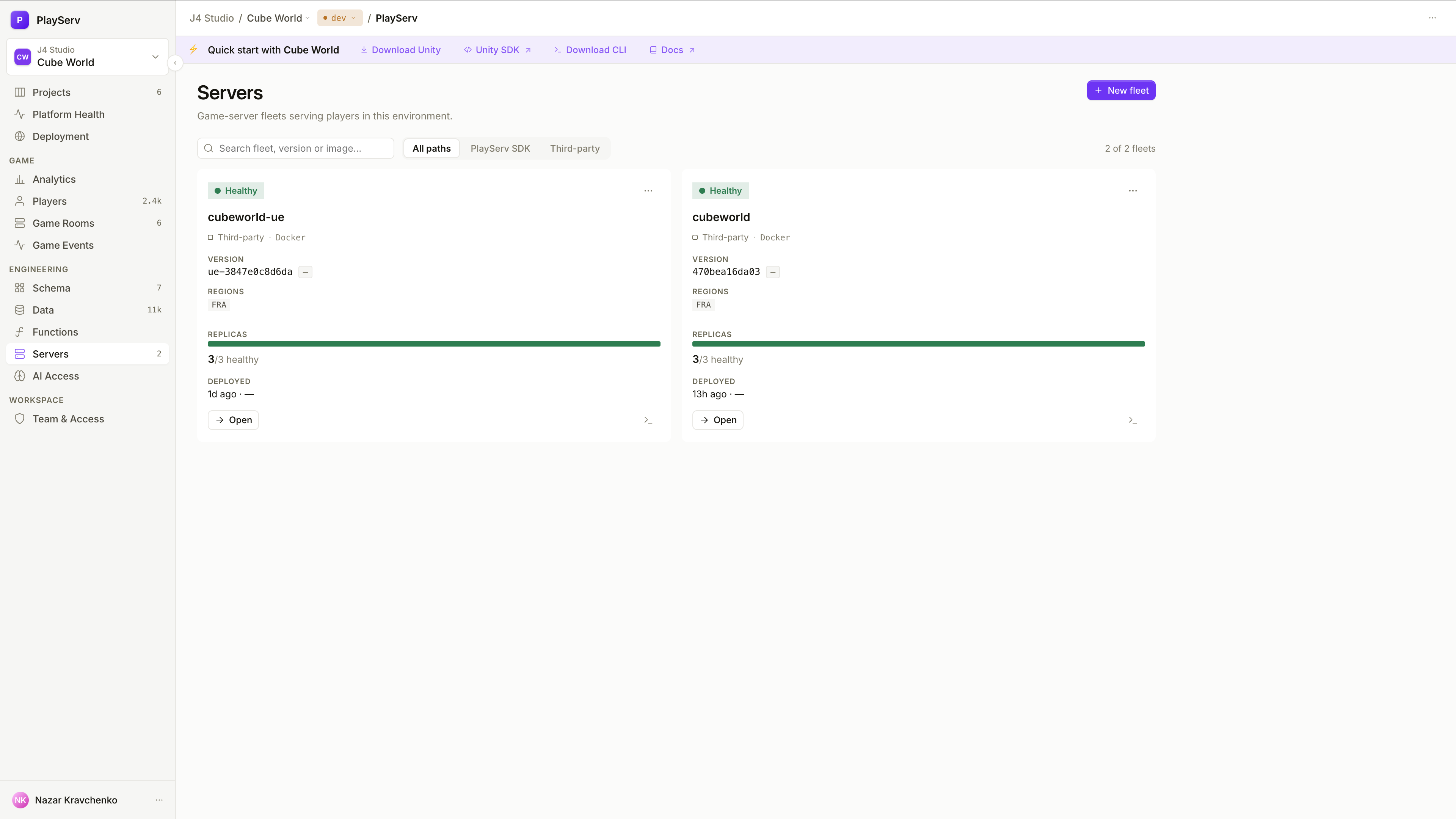
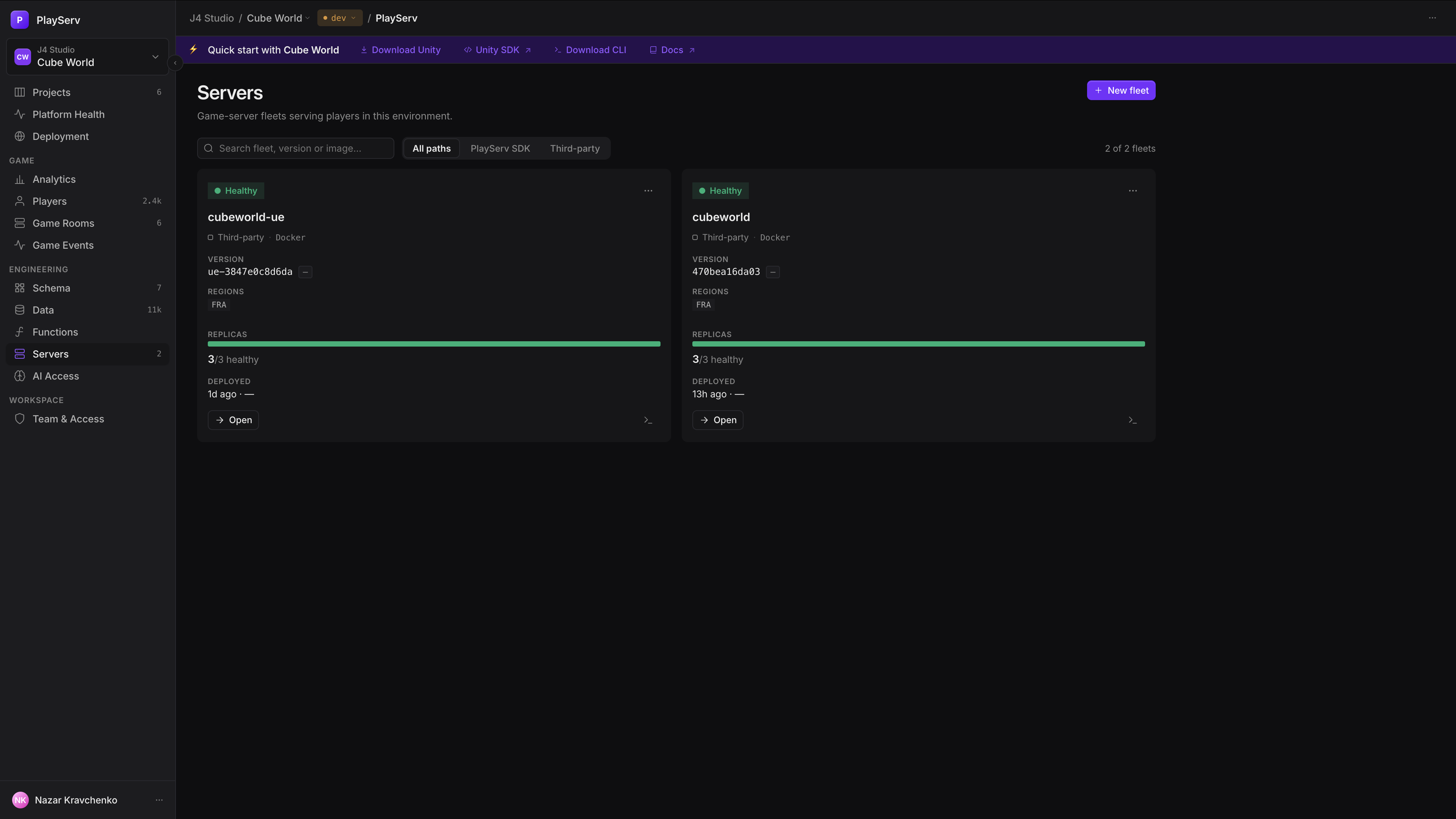
| On a card | What it shows |
|---|---|
| State · Path | The fleet's rolled-up state and how it runs. |
| Version | The running version and its commit. |
| Regions | The deployment points where it has replicas. |
| Replicas | "X/Y healthy", with draining and unhealthy counts. |
| Deployed | When, and by whom. |
Open opens the fleet; the logs icon goes straight to its logs. Search by name, version or image, and filter by path. New fleet opens Deployment points.
A fleet
A fleet has four tabs, and the … menu offers Regions & scaling config (it opens Deployment) and Copy image reference.
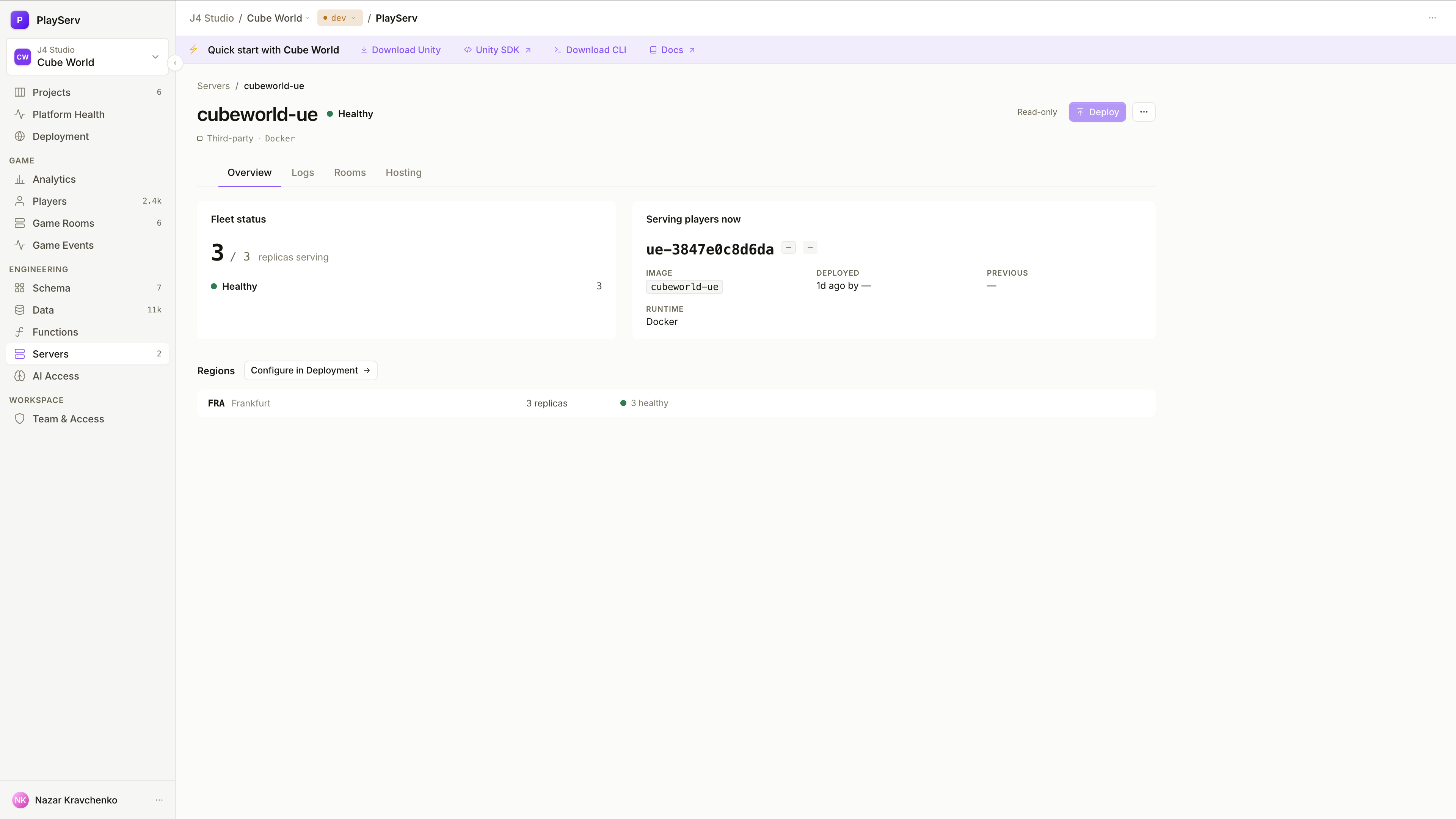
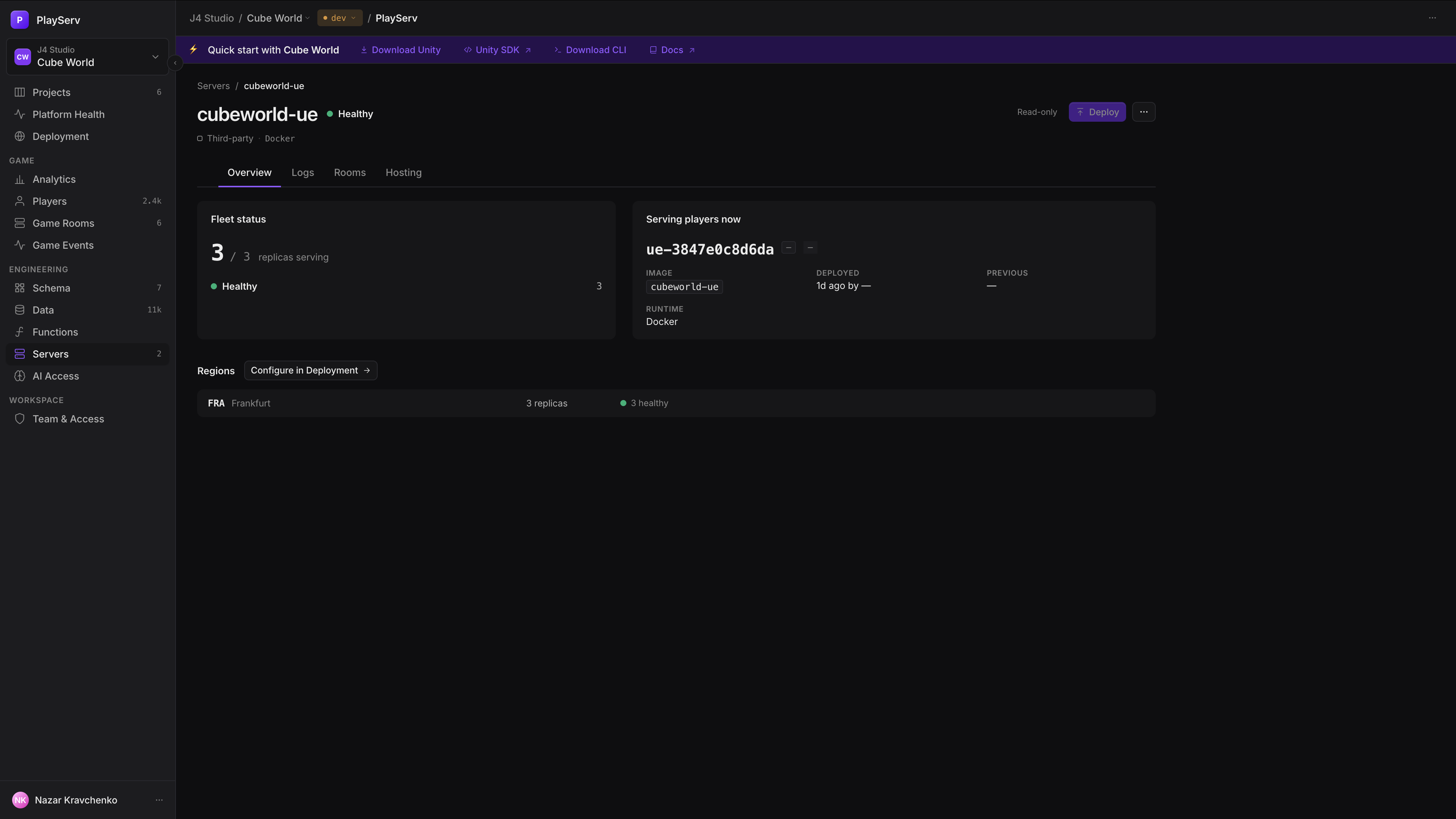
Deploy and Roll back aren't available here yet
The buttons are shown in the fleet header but disabled. Deploy a managed fleet through Functions; deploy a pooled fleet by changing its pool's image version on the Hosting tab.
| Tab | What's on it |
|---|---|
| Overview | Fleet status (replicas serving, by state), Serving players now (version, commit, branch, image, deploy time, previous version, runtime), Regions (replicas per deployment point), Replicas needing context (unhealthy and draining ones, with a shortcut to their logs) and Recent activity. Banners explain a failed deploy, a rollout in progress, or a state that can't be read. |
| Logs | The latest log lines, refreshed every 5 seconds while Live is on. Filter by text, severity, replica and region; wrap lines; copy what's visible. |
| Rooms | How this game server's rooms behave — room settings — and the instances connected right now. |
| Hosting | Where and how the fleet runs; for a pooled fleet, its machine pools. |
Room settings
Room settings make a game server a room type. Until it has them, the platform refuses every room its instances try to register. Configure room settings on the Rooms tab creates them.
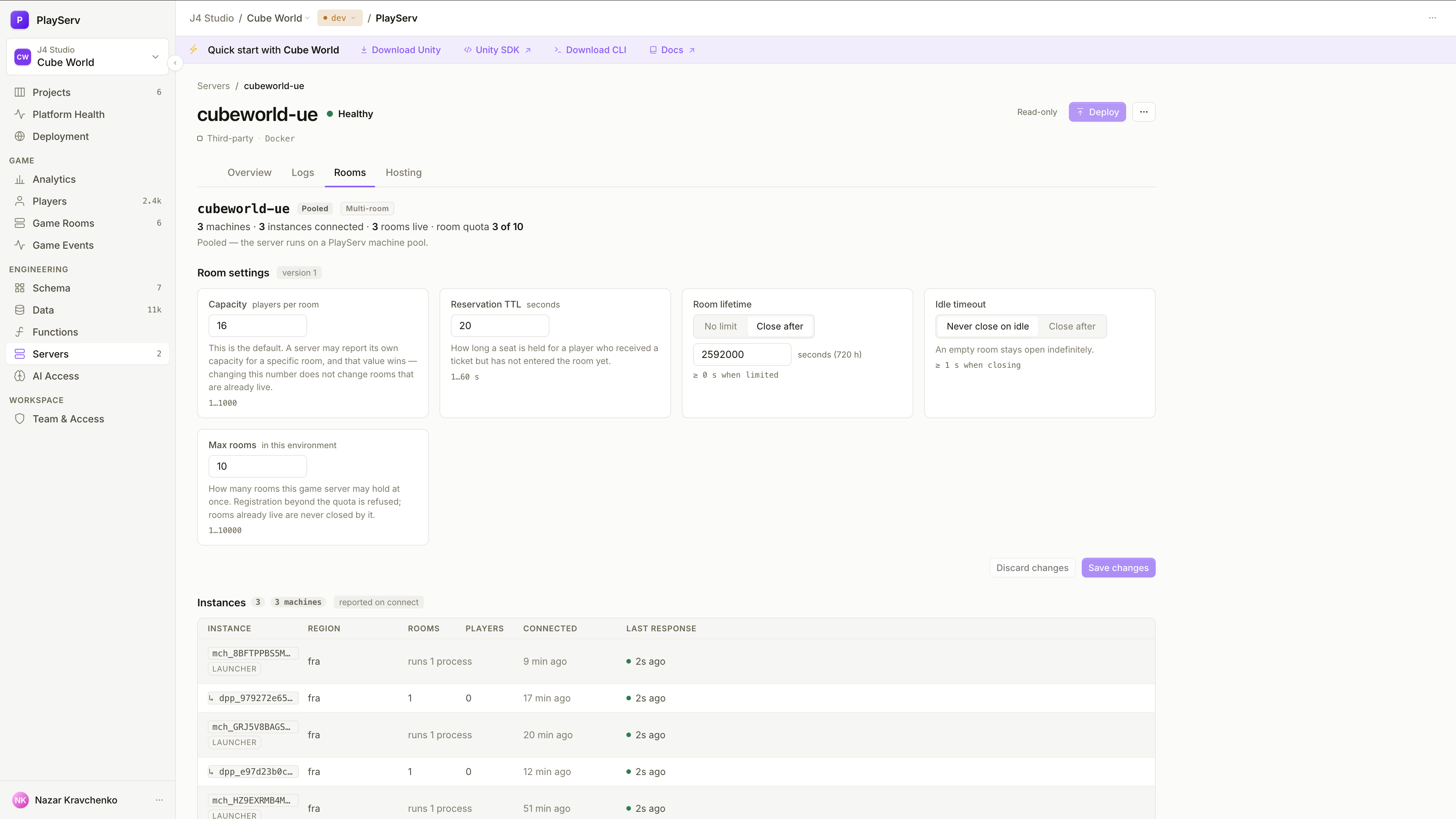
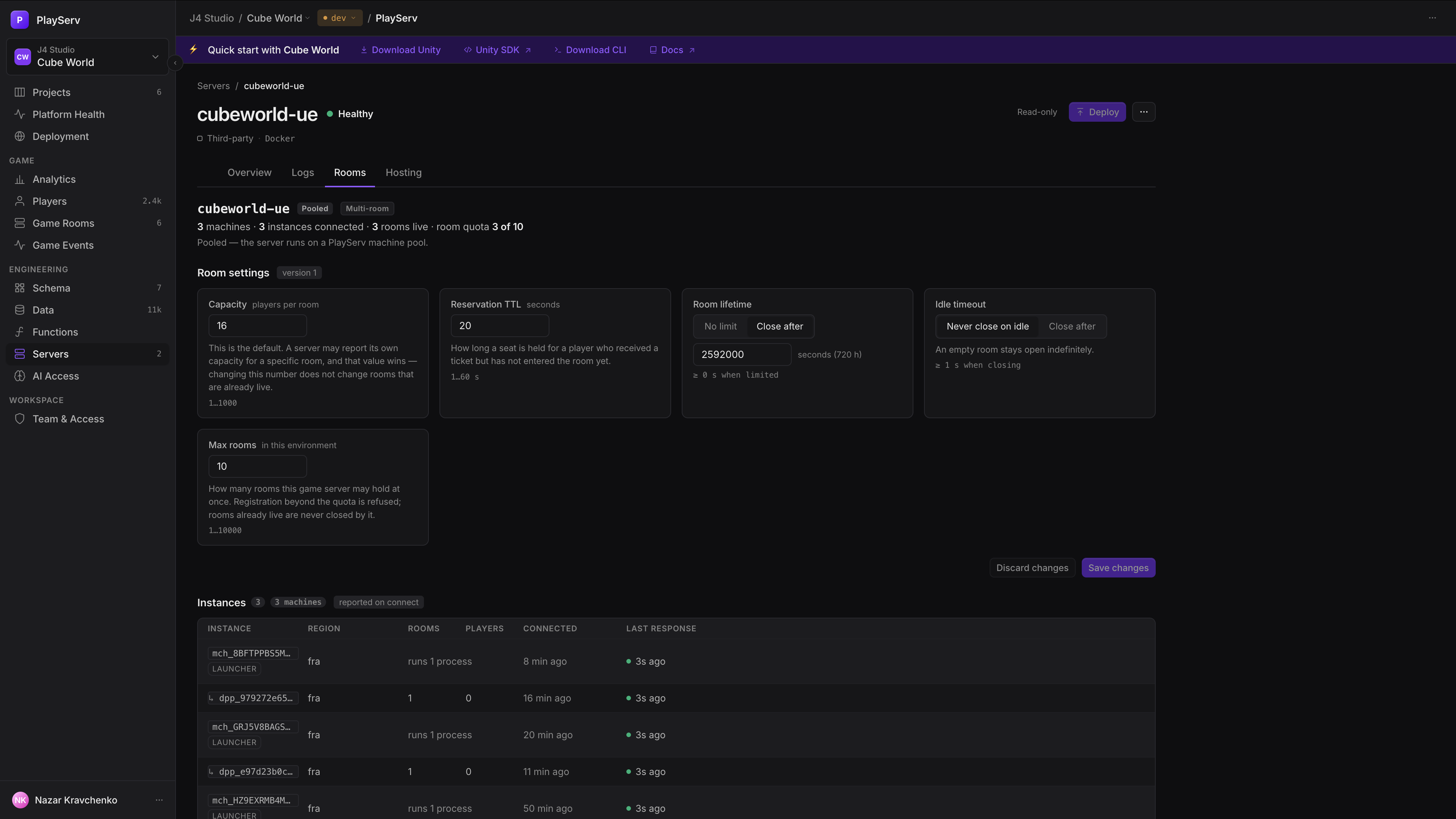
| Setting | Range | Default | Meaning |
|---|---|---|---|
| Capacity | 1–1000 | 8 | Players per room. A default only: a capacity your server reports for a specific room wins. |
| Reservation TTL | 1–60 s | 20 s | How long a seat is held for a matched player who hasn't entered yet. |
| Room lifetime | No limit, or N seconds | 1800 s | A room's maximum age; near the end it drains. No limit turns draining and expiry off. |
| Idle timeout | Never, or N seconds | 120 s | How long a room may stay empty before it closes. |
| Max rooms | 1–10000 | 50 | Rooms this game server may run at once in this environment. Further registrations are refused; live rooms are never closed by it. |
Saving applies on the next heartbeat
Each save creates a new version of the settings, and running instances pick it up on their next heartbeat — no redeploy, no restart. Live rooms keep running, and lowering capacity doesn't evict anyone.
A value out of range is rejected on its field rather than clamped. The tab's header also shows the hosting mode, set in the server declaration: Multi-room (one long-lived process per machine hosts several rooms, the default) or Process per room.
Instances
Every game-server process connected right now, with its Region, Rooms, Players, when it Connected and its Last response, fresh or stale on the same 15-second window as rooms. On a pooled fleet, each machine's launcher groups the processes it runs. Click an instance to see its rooms in Game Rooms.
Hosting
| Path | What the tab shows |
|---|---|
| Managed | The current deploy, commit and running replicas. Deploys, logs, secrets, environment variables and scaling live in Functions — Open in Functions. |
| External | Launches: each launch request with its deployment, region, expected room, time and outcome — Launched, Registered, Failed or Dead. A failure names its reason, such as unreachable, capacity_refused, region_unavailable, credential_rejected or process_exited. |
| Pooled | The fleet's machine pools. |
Machine pools
A machine pool keeps warm machines at a deployment point, running your server image and ready to take a room. A fleet has one pool per deployment point, each with its own size. The cluster decides the provider, machine type and region; you set the size, rooms per machine and image version.
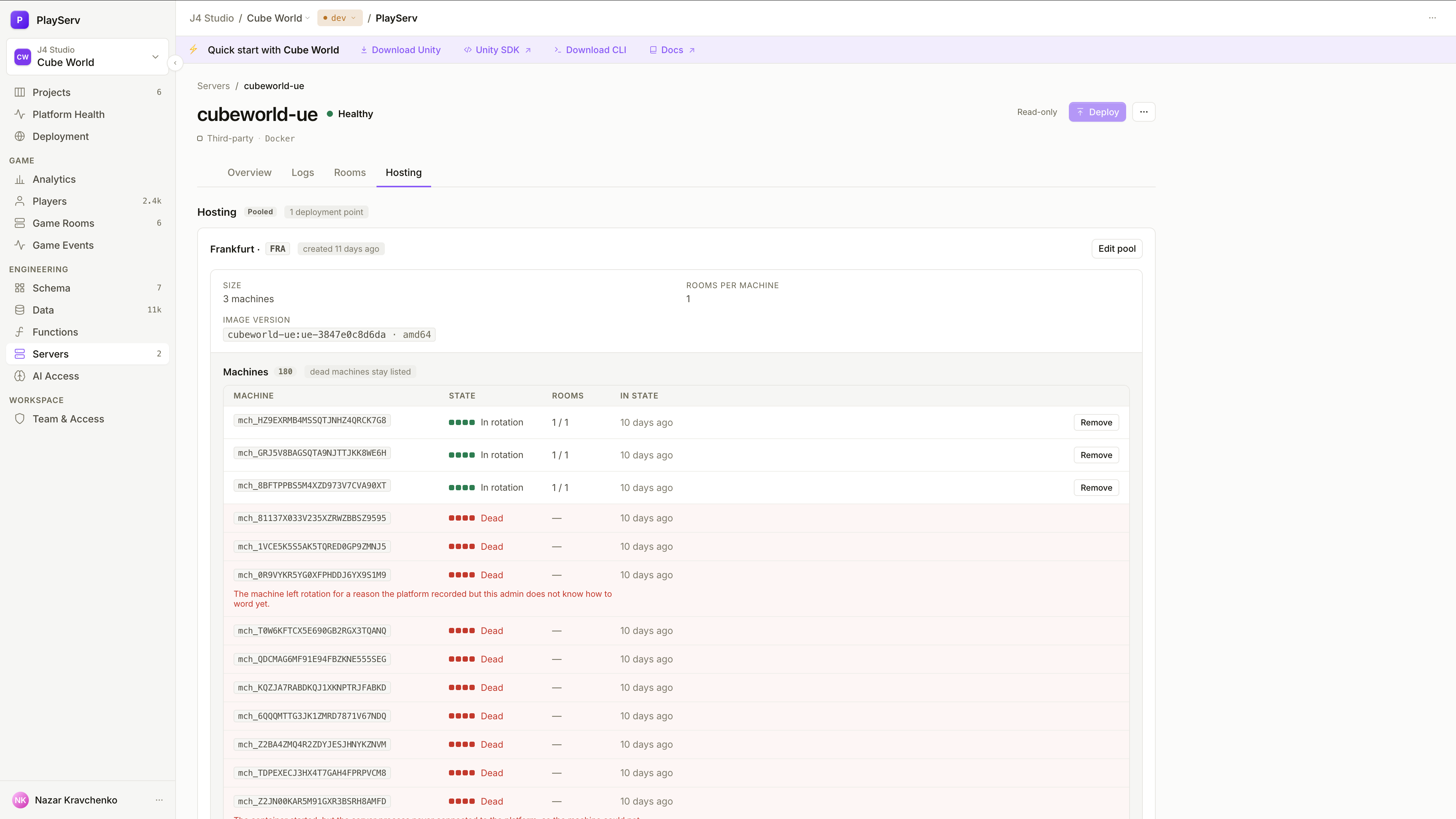
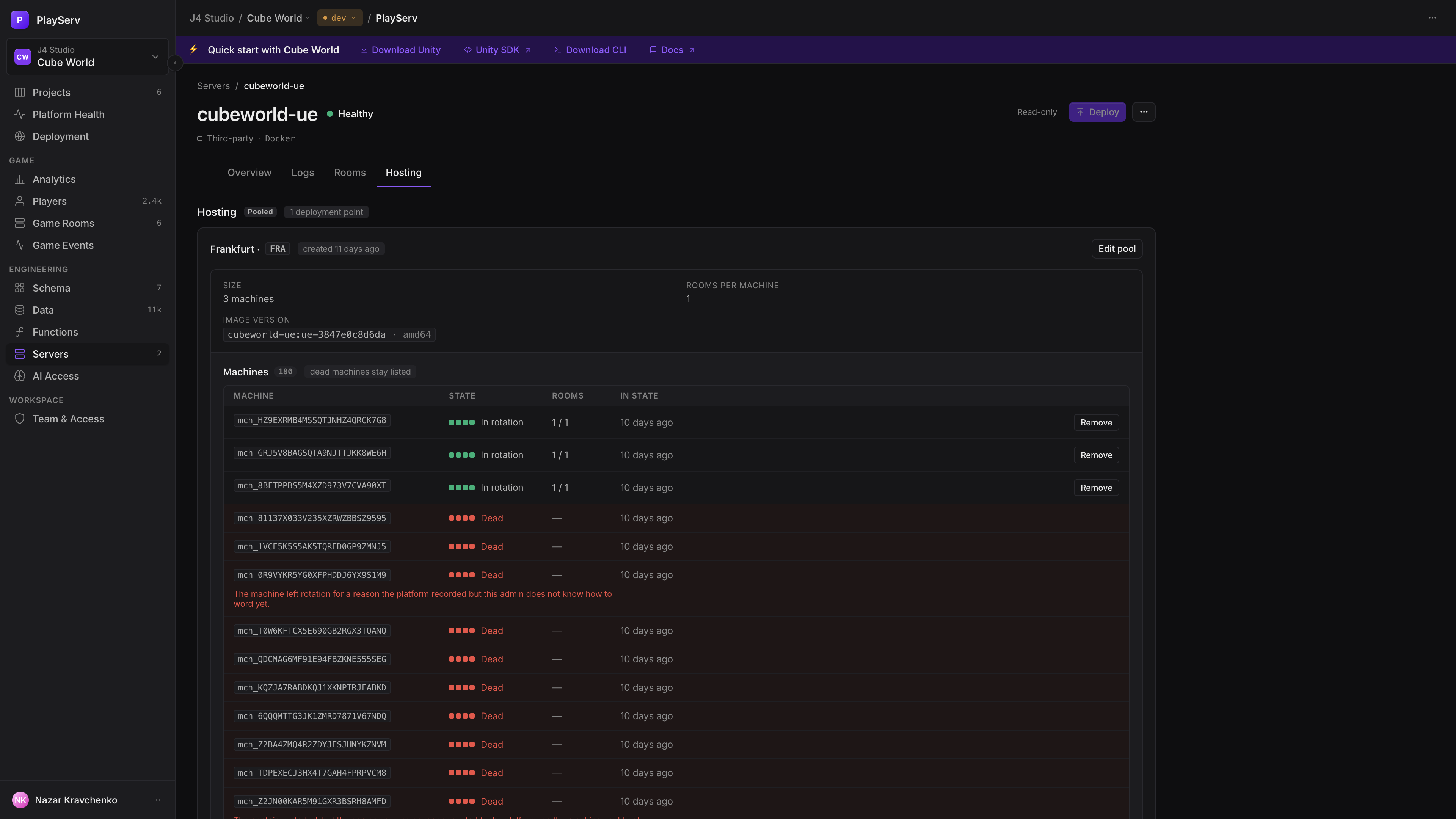
| Field | Range | Default | Meaning |
|---|---|---|---|
| Size | 0–64 | 2 | How many machines. |
| Rooms per machine | 1–1000 | 4 | How many rooms each server process may host. |
| Image version | Your pushed tags | — | Only linux/amd64 tags can be selected. |
Create one with Create pool, or Add deployment point when the fleet has pools already. The form shows the resulting capacity, such as "2 machines × 4 rooms = up to 8 rooms at once", and the first machine joins in about 3.5 minutes. Edit pool changes the values; if someone else changed the pool meanwhile, the save is refused and you reload.
Changing the image version is the deploy
Machines are kept and their processes restart on the new version, so players on them are disconnected and can rejoin. Lowering the size removes machines and closes their rooms; size 0 stops every machine but keeps the pool's settings. Both ask you to confirm, with the number of rooms and players affected.
| Part of a pool | What it shows |
|---|---|
| Status strip | Converging (adding machines, about 3.5 minutes each), Above size, coming back down, Moving to version, or Destroying this pool. |
| Reason | A plain-language reason when the pool hits a problem: capacity refused, a quota or instance ceiling reached, machines failing to start. |
| Machines | Every machine, dead ones included, with its state, rooms in use and time in that state: Requested → Booting → Ready → In rotation → Draining → Dead. Ready means the machine answers; in rotation means the server process connected and can take rooms. Remove destroys one machine and its rooms, and the size drops by one. |
| Consumption | Machine hours and traffic over 24 hours, 7 days or 30 days. |
Deployment points
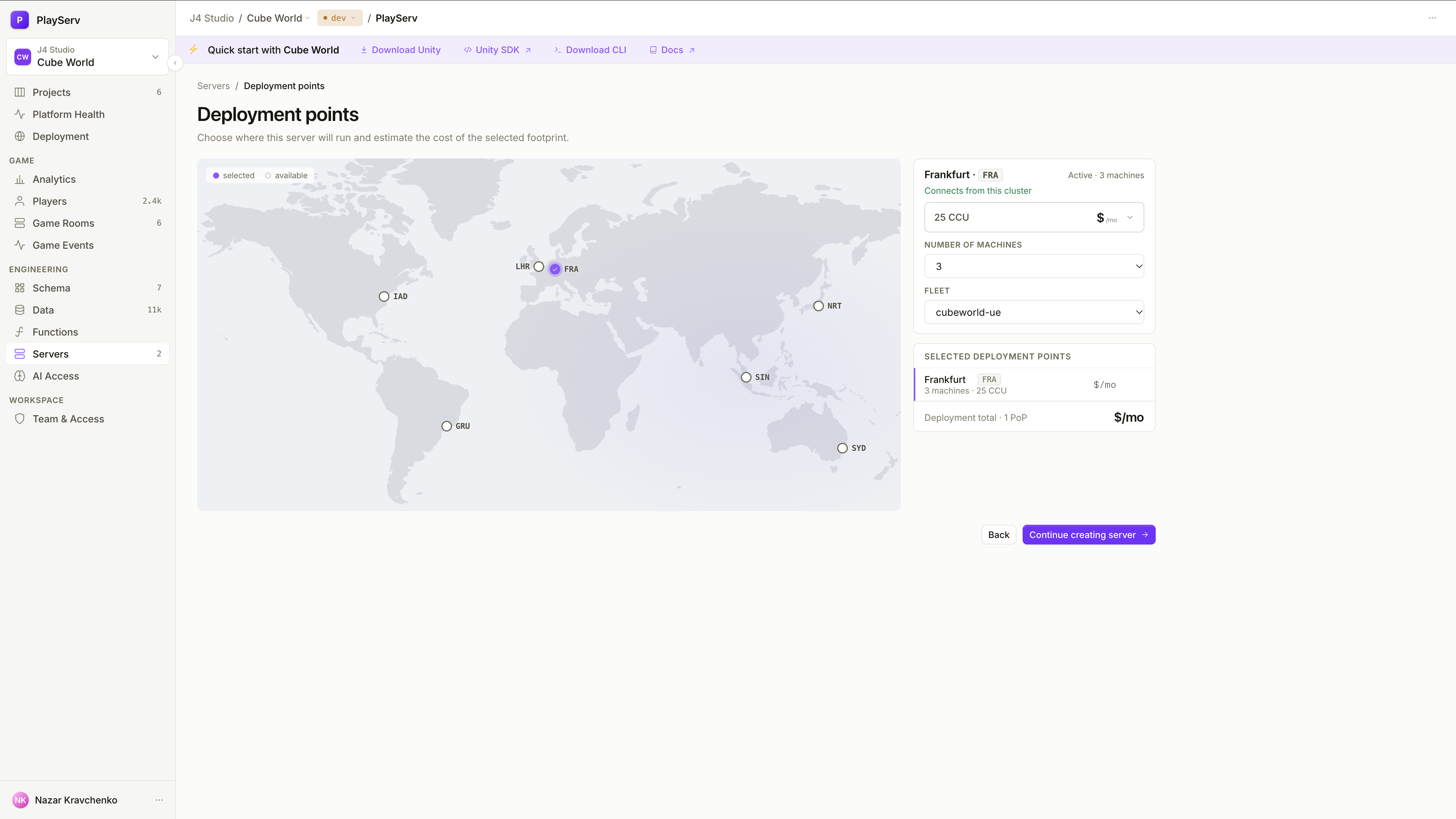
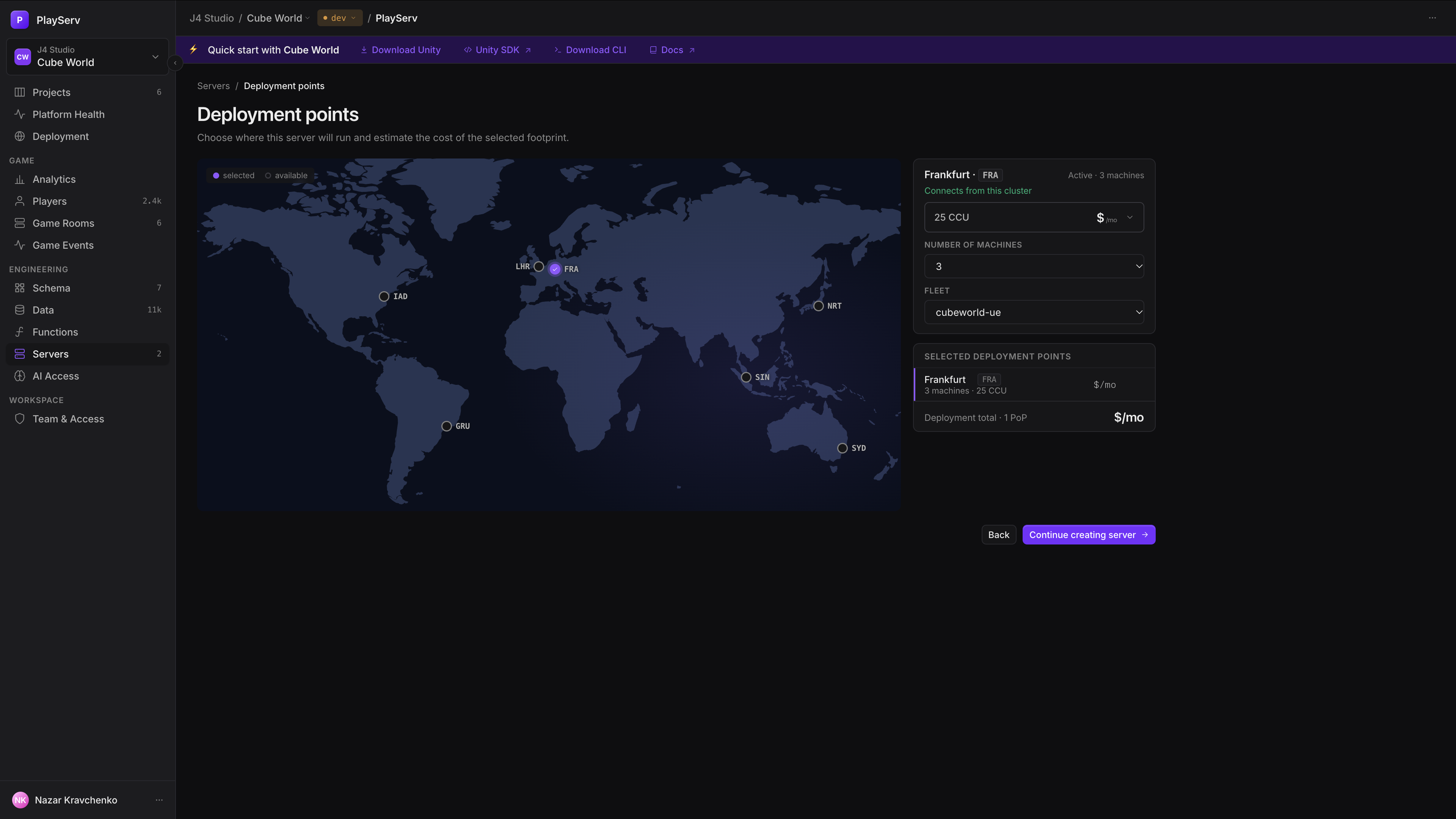
Deployment points is where you choose where a fleet runs, and what that footprint costs. Open it with New fleet, or by clicking an available location on the Deployment map.
| Step | What you do |
|---|---|
| 1. Pick points | Click a point on the map. Its panel shows its state — Active · N machines, In footprint or Not selected — and whether this cluster can connect to it; points the cluster doesn't offer can't be picked. |
| 2. Size them | Choose a CCU tier for the point (the price shown is an estimate of the plan), and the number of machines, 0–5. An active pool starts at its current size. |
| 3. Choose the fleet | Only fleets that don't run on Cloud Run can take a pool. |
| 4. Review and continue | Selected deployment points lists machines, CCU and price per point, with the total. Continue creating server shows every change before it applies, for example "Frankfurt (FRA): 2 → 3 machines", with the rooms and players a reduction affects. |
Machine counts apply within about 5 minutes, and tariff plans from the 1st of the next month. A fleet with no pushed image yet continues to the pool form on its Hosting tab.
A pool can't be removed while rooms are registered on its machines: close them in Game Rooms first, or let them end.
Next steps
- Game Rooms — the live rooms your fleets host
- Deployment — every location your project serves players from
- Game Server Hosting — writing the server that registers rooms
- Functions — deploys, secrets and scaling for managed game servers
Last updated on 10 Oct 2026