Not translated yet — showing English.
Catalog
Last updated: 6 August 2026
The Catalog is where you define the items and bundles players can buy — currency packs, skins, and packs that combine several items into one. Create an item, give it a name, SKU, image, and description, then optionally turn it into a bundle.
To open it: navigate to Catalog in the project sidebar.
Items
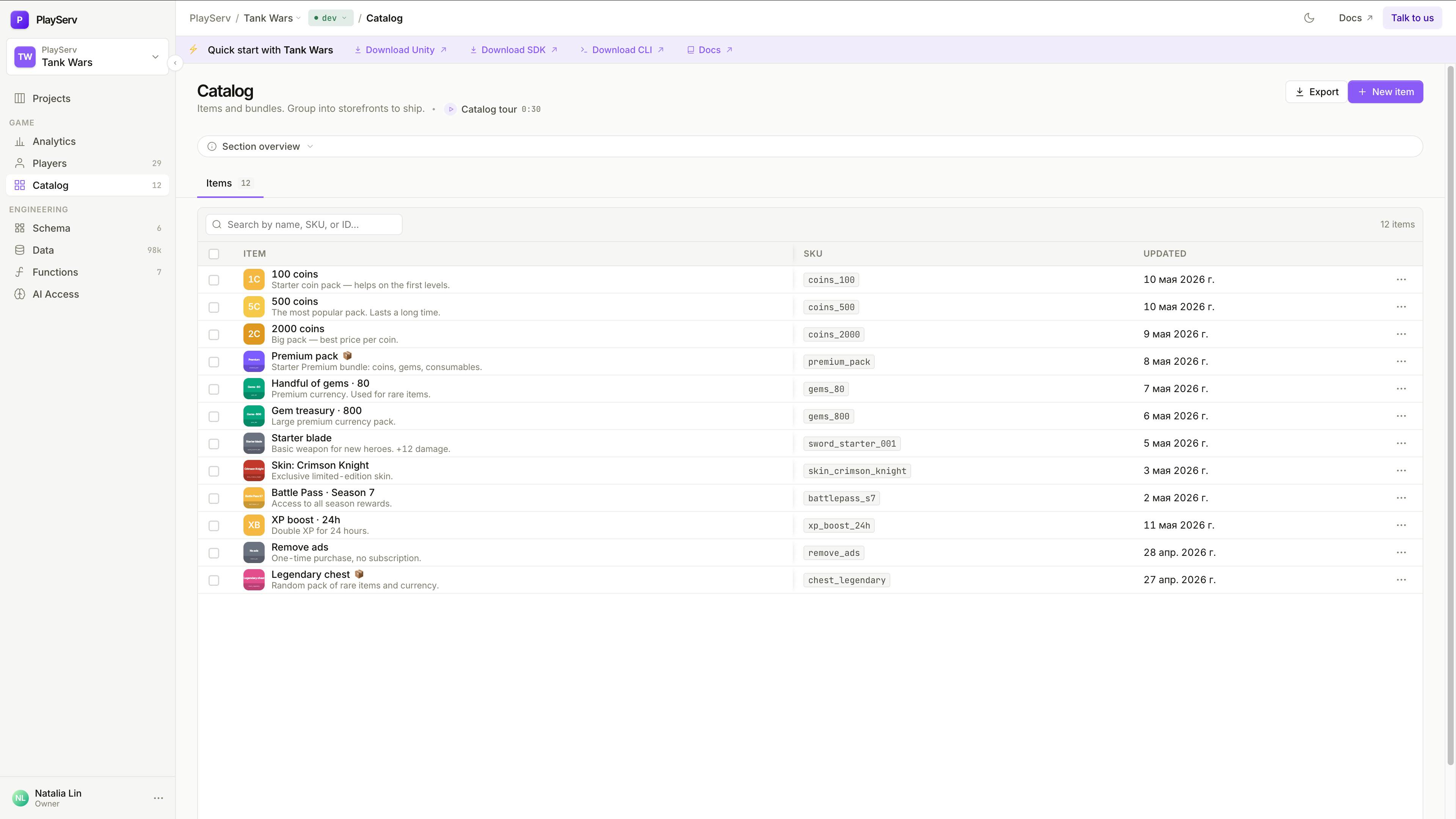
The Items list shows every catalog item in the project.
Use the search bar to find an item by name, SKU, or ID. New item creates one; Export downloads the catalog.
| Column | Description |
|---|---|
| Item | Icon, display name, and description. Bundles show a small box marker. |
| SKU | The item's identifier, used in receipts. |
| Updated | When the item was last changed. |
Click any row to open the item detail panel.
Creating an item
Open the New item dialog
Click New item in the top-right of the Catalog page.
Fill in name and SKU
Enter a Name (what players see in-game and on receipts) and a SKU (the internal identifier). Use Suggest from name to generate a SKU automatically. A Description is optional.
Create and continue
Click Create and continue to open the new item's detail panel, where you can add an image and description.
SKU rules
A SKU uses lowercase Latin letters, digits, and underscores, must start with a letter, and can be up to 24 characters (for example coins_500). Keep it stable once the item is live.
Item detail panel
Opens as a side panel over the item list. The header shows the item's name and its internal id (itm_*).
The panel has two tabs: Details and History.
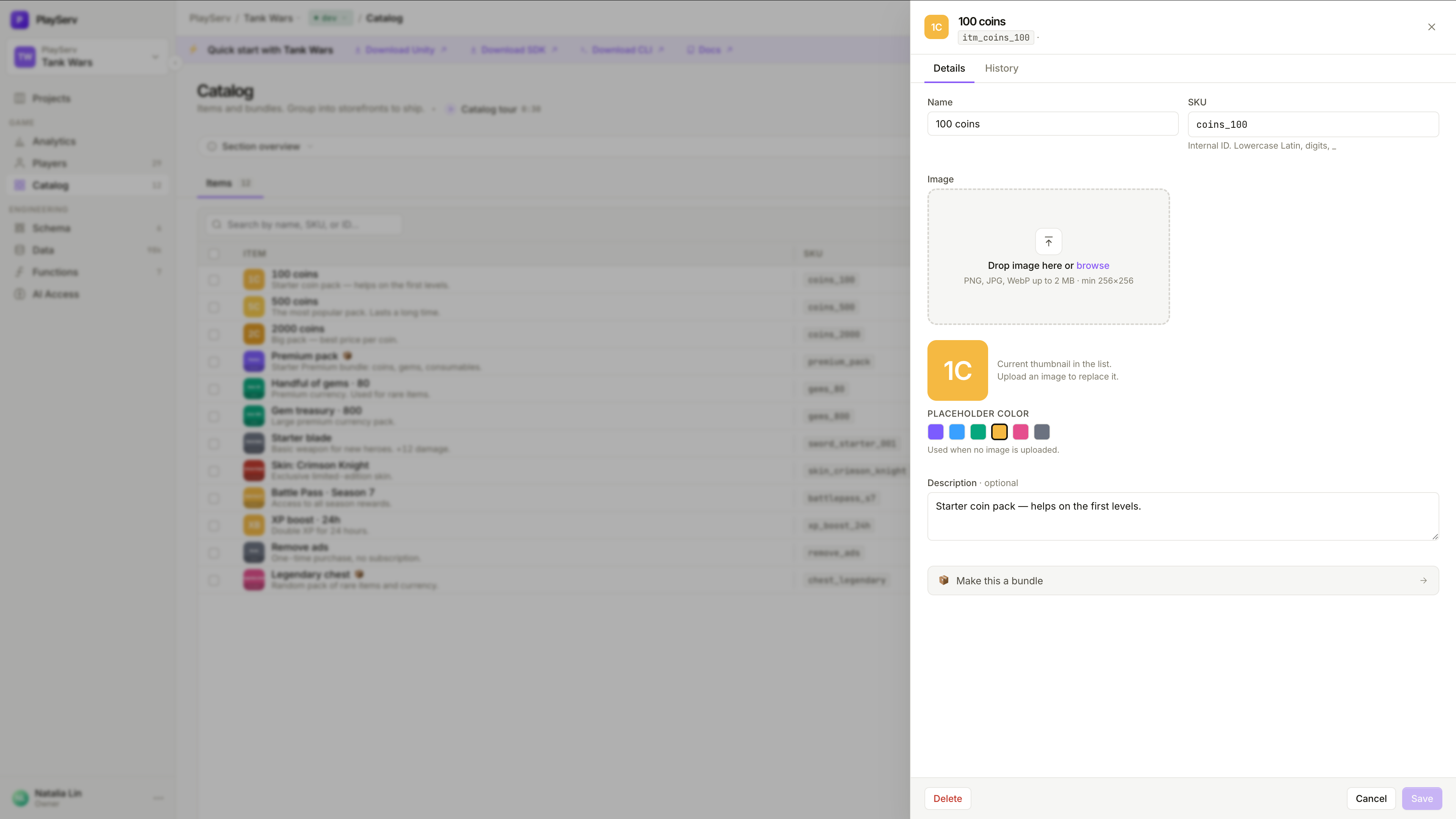
Name and SKU — the item's display name and identifier.
Image — drop or browse to upload a thumbnail (PNG, JPG, or WebP, up to 2 MB, minimum 256×256). Until an image is uploaded, a placeholder color is used for the list thumbnail.
Description — optional player-facing text.
Make this a bundle — turns the item into a bundle (see Bundles).
A chronological record of changes to the item — created, edited, and turned into a bundle — newest first. Each entry shows who made the change and when.
Use Save to apply your changes, Cancel to discard them, or Delete to remove the item.
Bundles
A bundle is an item that grants several other items in a single purchase — a starter pack, a season pack, a chest.
Make the item a bundle
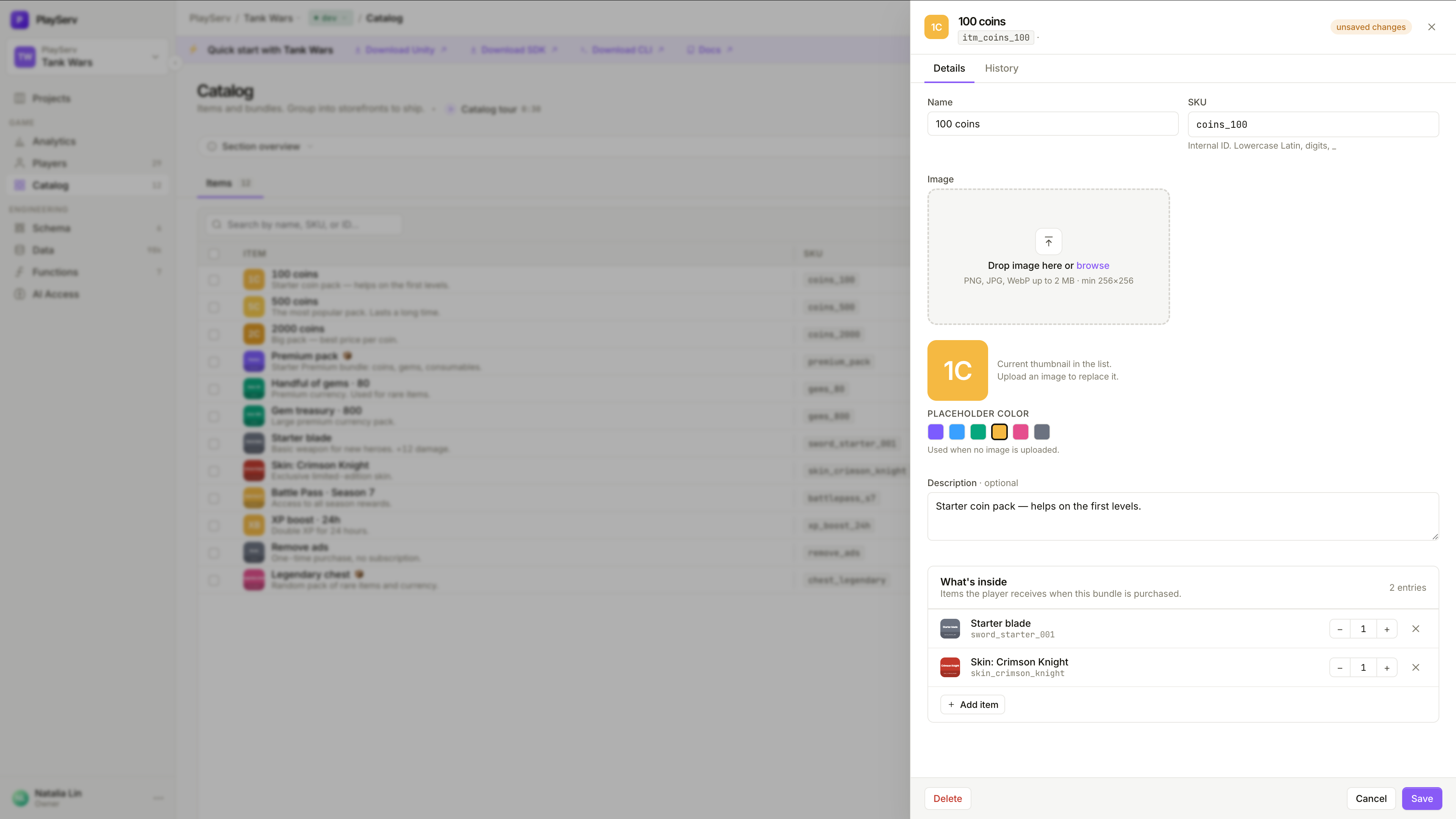
In the item's Details tab, click Make this a bundle.
Add items to the bundle
Click Add item, search the catalog, and click a result to add it. Set a quantity for each entry with the steppers. What's inside lists everything the player receives when the bundle is purchased.
Save
Click Save. An unsaved changes badge in the header reminds you when edits are pending.
Warning
Bundles can't contain other bundles — only plain items. Add each item and its quantity directly.
Next steps
- Managing Players — the player accounts that own items
- Building a Game Schema — model the data your items grant
- API Key Management — project credentials used by the SDK
Last updated on 6 Aug 2026